Connect Your Data Source
Follow these steps to connect the Revopy Power BI App to your own Azure Table Storage data.
Step 1: Open the App and Click on the Yellow Banner
When you open the Revopy app, you’ll see a yellow banner prompting you to connect your own data source.
Click the banner to begin setup.

Step 2: Get Your Authentication Keys
You’ll need your Account Name and Access Keys from Azure.
You can find this information here:
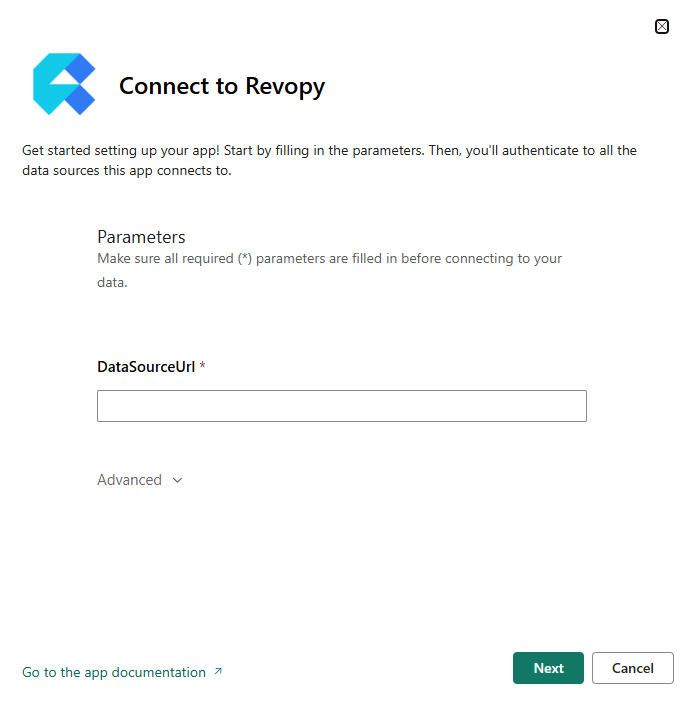
Step 3: Enter Your Azure Storage Table URL
In the field labeled Datasource URL, enter your Azure Table Storage URL in the format: https://AccountName.table.core.windows.net/
Step 4: Enter Authentication Method and Account Key
Choose the authentication method (usually "Account Key"), and then paste your Storage Account Key.

Once you complete these steps, your app will be connected to your live data!